【無料版あり】ツノを自動で付けるやつ【VRChat/Unity】
- ダウンロード商品無料版(ボタン1つで付ける)¥ 0無料ダウンロードHornFit_Free_v1.0.0.zip(22.3 KB)HornFit_Free_v1.0.0.zip
- ダウンロード商品通常版(微調整つき)¥ 500
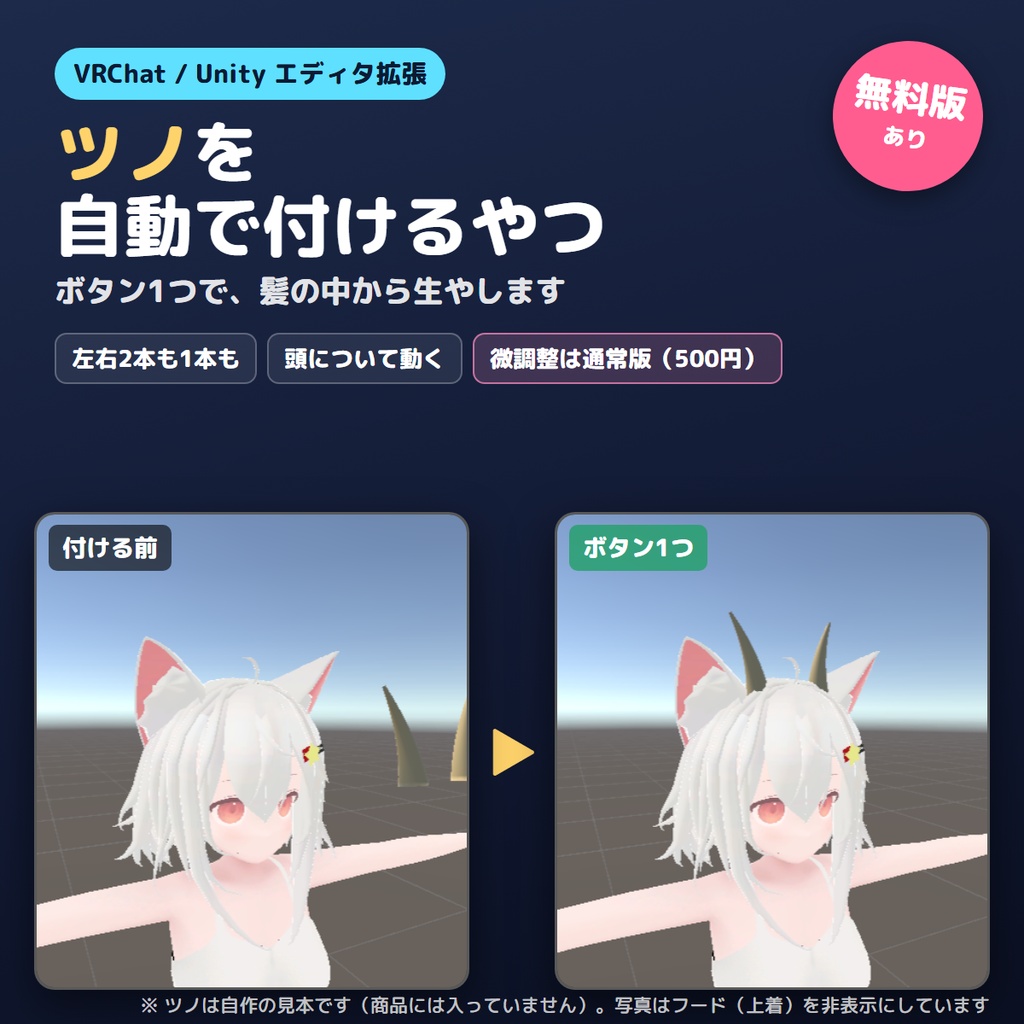
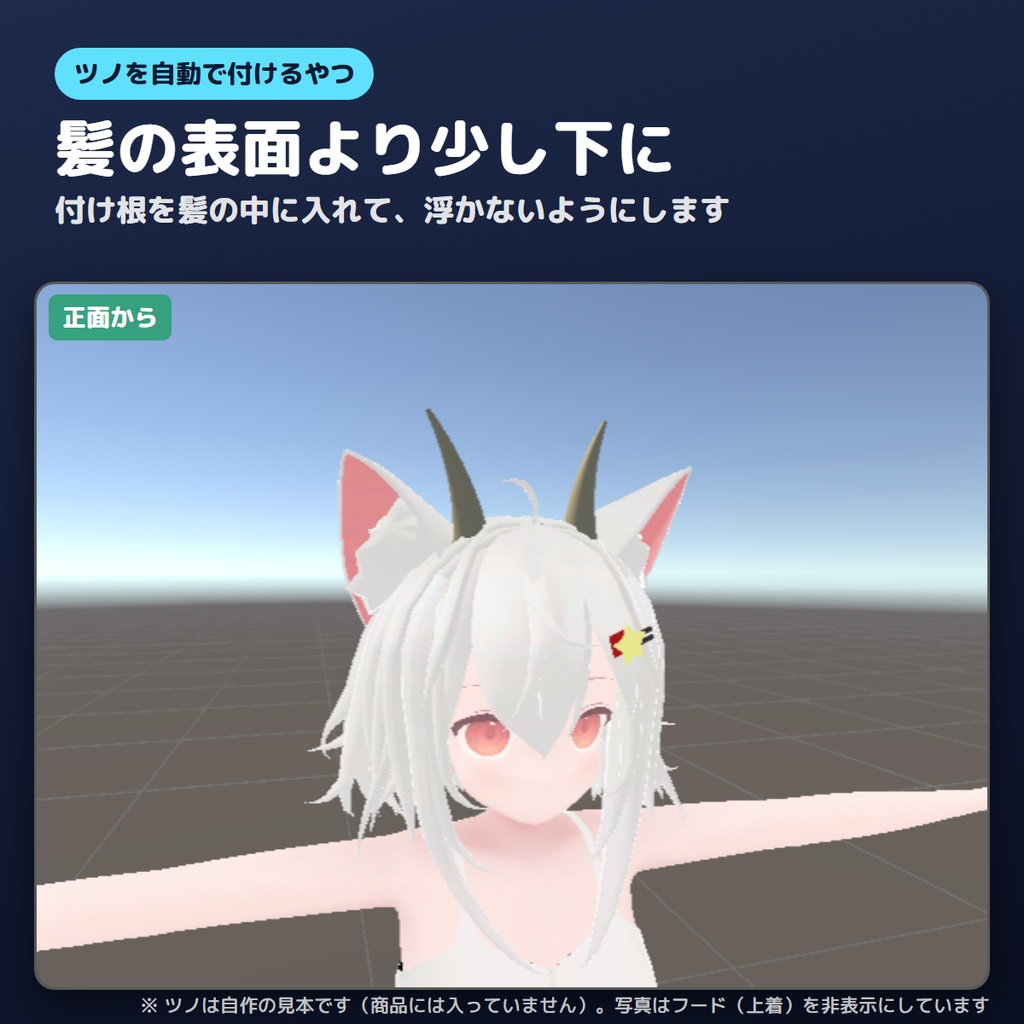
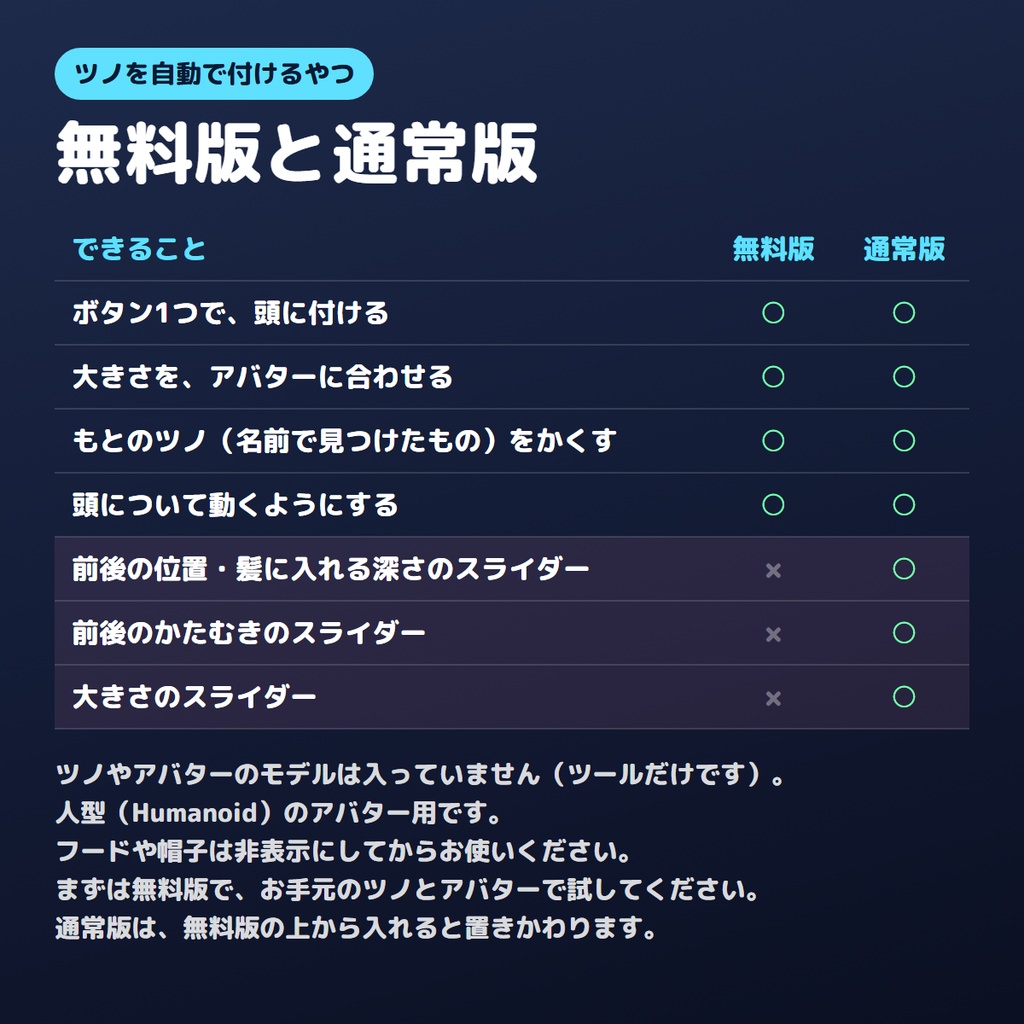
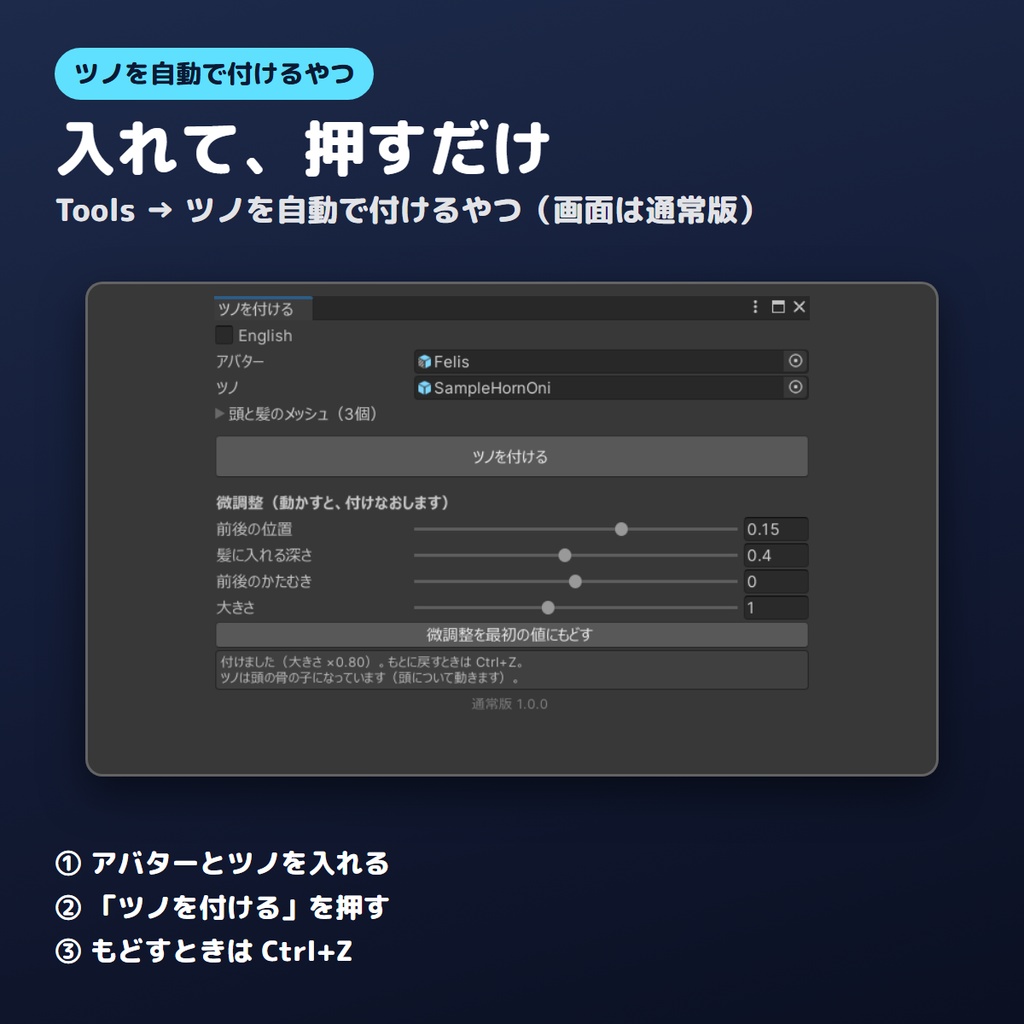
ツノを、アバターの頭に自動で付けるエディタ拡張です(前後の位置・髪に入れる深さ・かたむき・大きさの微調整は通常版)。 ツノやアバターのモデルは入っていません(ツールだけです)。 アバターとツノを窓に入れて「ツノを付ける」を押すと、頭の上の髪の表面と頭の肌を見つけて、ツノの付け根を髪の中に少し入れて付けます。左右2本のツノは、左右それぞれの付け根の下の髪に合わせます。アバターがもとから付けているツノ(名前に horn・ツノ・角 が入っているもの)は、チェック1つでかくせます。 ツノの位置・大きさ・向きと、置き場所(アバターの中に入れ、BoneProxyがなければ頭の骨の子にする)、BoneProxyのつけ方を変えます。「アバターのもとのツノをかくす」にチェックがあると、もとのツノを非表示にします。メッシュや画像などのもとのファイルは書きかえません。もとに戻すときは Ctrl+Z です。 ■ こんなときに ・ほかのアバター向けに作られたツノを、自分のアバターに付けたい ・ツノを入れたら、髪から浮いたり、頭にうまったりしていた ・いろいろなツノを、すぐに付けくらべたい ■ 無料版と通常版のちがい 無料版・通常版の両方: ・ボタン1つで、頭の上の髪の表面と頭の肌を見つけて、ツノの付け根を髪の中に少し入れて付ける ・左右2本のツノも、1本のツノも付けられる ・ツノの大きさを、アバターに合わせる(作者がツノを置いた頭の高さと、このアバターの頭の高さをくらべて合わせる。アバターの足もとを原点にした作りでないツノは、大きさはそのまま) ・アバターのもとのツノ(名前に horn・ツノ・角 が入っているもの)をかくす(チェックで切りかえ) ・頭について動くようにする(ツノに Modular Avatar の BoneProxy が付いていればそれを使い、なければ頭の骨の子にします) 通常版だけ: ・前後の位置・髪に入れる深さ・前後のかたむき・大きさを、スライダーで微調整する まず無料版で、お手元のツノとアバターで試してください。 通常版は、無料版の上から入れると置きかわります。 ■ 動く環境 ・Unity 2022.3(VRChat指定の 2022.3.22f1 で確認) ・人型(Humanoid)で、頭(Head)と首の骨があるアバター ・Modular Avatar は無くても動きます ■ 確かめた組み合わせ 無料で配られているアバター4体(ちびキャラ1体をふくむ)と、次のツノ10個の40通りで試しています。 ・BOOTHで無料で配られているツノ3作品の6つ(シカの角・一本ヅノ・耳の横に広がる角・左右一体の羊の角・左右が別々の羊の角(左だけ試した)・バラかざり付きの角) ・自作の見本4つ(鬼のツノ2本・一本ヅノ・羊のツノ2本・小さいツノ2本) 自作の見本の16通りすべてで、ツノの付け根が髪の表面から0.2〜2.3cmほど中に入ることを確かめています。 このツールは、頭の上に付けるツノ向けです。BOOTHのツノのうち、耳の横に大きく広がる角(1作品)は、4体のうち2体で頭から数cm浮き、1体であごの高さに付きました。バラかざり付きの角も、アバター1体で顔の横の高さまで下がりました。シカの角・一本ヅノ・左右一体の羊の角は、頭の上に付きました。ちびキャラ1体では、ツノが大人の体型の3分の1ほどに小さくなり、ほとんど見えませんでした。 4体それぞれに、名前を Horn にしたツノを「もとのツノ」として付けておき、チェックでかくれることも確かめています。 大人の体型の3体と、ツノ4つ(ふつうの見本・BoneProxy 付きの見本・BOOTHのツノ2つ)の12通りで、アップロードのときと同じ処理(Modular Avatar・Avatar Optimizer)をかけたあとも、付けた位置と大きさが変わらないことを確かめています。 無料版・通常版それぞれ、ツールの入っていない別のプロジェクトに入れて動くことも確かめています。 ■ うまく合わないとき ・フードや帽子は、ツノの付け場所としては見ません(その下の髪に付けます)。長いツノはフードや帽子をつき抜け、短いツノはかくれます。フードや帽子は非表示にしてからお使いください ・ちびキャラなど頭の大きいアバターでは、ツノが大人の体型の3分の1ほどに小さくなり、ほとんど見えないことがあります(通常版の「大きさ」で2倍まで大きくできます) ・頭の横に付けたいツノ(羊のツノなど)も、頭の上に付きます。頭の横へは、Unity で手で動かしてください ・耳の横・顔の横に付くツノ(左右の付け根が頭の幅より外にあるもの)は、頭からはなれて浮いたり、低い位置に付いたりします。このツールでは合わせられないので、手で動かしてください ・左右が別々のプレハブのツノは、1つずつ付けると、作者が作ったとおりの左右のはなれで付きます ・ツノの向き・開き方は、作者が作った形のままです。前後のたおし方だけは、通常版の「前後のかたむき」で直せます ・アバターの足もとを原点にした作りでないツノ(原点が付け根の近くにあるもの)は、大きさはそのままです(窓に知らせが出ます。通常版の「大きさ」で直せます) ・Merge Armature が付いているときは、念のため窓に知らせが出ます。Play で見た目を確かめてください ・付ける場所がずれるときは、窓の「頭と髪のメッシュ」で、頭の肌(素体・顔)と頭の上の髪だけにチェックを入れてください(耳・ツインテール・小物は外します) ■ 入れ方 1. ZIPを展開し、中の unitypackage を Project ウィンドウにドラッグして、Import を押す 2. メニューの Tools → ツノを自動で付けるやつ を開く 3. 窓に、ヒエラルキーのアバターと、シーンに置いたツノを入れて、「ツノを付ける」を押す ■ 利用規約 ・個人・法人、営利・非営利を問わず使えます ・このツールで付けたアバターやツノの写真・動画は、どこに載せてもかまいません(クレジット不要) ・このツールそのもの(ファイル)の再配布・転売はできません ・ツノやアバターの利用規約は、それぞれの作者の規約に従ってください ・使ったことで起きたことの責任は負えません。大事なプロジェクトは、使う前にバックアップを取ってください ■ シリーズ ・羽を自動で付けるやつ https://kotokoto-lab.booth.pm/items/8992920 ・しっぽを自動で付けるやつ https://kotokoto-lab.booth.pm/items/8992901 ・チョーカーを自動で合わせるやつ https://kotokoto-lab.booth.pm/items/8992036 ・ピアスを耳に自動で付けるやつ https://kotokoto-lab.booth.pm/items/8968591 ・帽子を自動で合わせるやつ https://kotokoto-lab.booth.pm/items/8968090 ・メガネを自動で合わせるやつ https://kotokoto-lab.booth.pm/items/8965464 ・身長・頭身・スリーサイズをまとめて測るやつ https://kotokoto-lab.booth.pm/items/8964367 ・ほかの道具はショップへ https://kotokoto-lab.booth.pm/ ■ 更新 ・2026-10 v1.0.0 公開 不具合やご要望は、ショップのメッセージからお送りください。 --- English --- Horn Auto Fit is a Unity editor extension that attaches horns to your avatar's head in one click. It finds the hair surface and the head skin on top of the head and puts the horns' base slightly into the hair (for a pair, under each base). It sizes the horns to the avatar (based on where their creator placed them when their origin is at the avatar's feet; otherwise the size is kept and a note is shown), and makes them follow the head (Modular Avatar BoneProxy if present, otherwise they become a child of the Head bone). It can also hide the avatar's own horns (renderers whose names contain horn, ツノ or 角) with one checkbox. Original meshes and textures are not modified. Undo with Ctrl+Z. No horn or avatar models are included (tool only). Free version: one-click attach (position and size), single horns or pairs, hide the avatar's own horns, and the horns follow the head. Full version: adds sliders for front/back position, depth into hair, tilt, and size. Requirements: Unity 2022.3 (tested on 2022.3.22f1), Humanoid avatar with Head and neck bones. Works without Modular Avatar. Tested with 10 horns on 4 avatars (40 combinations): 6 from 3 free BOOTH items (antlers, a unicorn horn, ram horns that spread beside the ears, one-piece ram horns, only the left one of a left/right separate pair, horns with rose decorations) and 4 self-made samples. With the 4 self-made samples (16 combinations), the base went about 0.2 to 2.3 cm below the hair surface. This tool is for horns that go on top of the head: in the BOOTH tests, horns that spread out beside the ears floated a few cm away from the head on 2 avatars and sat at chin height on 1, and horns with rose decorations dropped to the side of the face on 1 avatar; antlers, the unicorn horn and the one-piece ram horns went on top of the head. Horns meant for the sides of the head cannot be fitted by this tool; move them by hand. Left/right separate horns keep their creator's spacing (checked with the left one only). Hiding the avatar's own horns was checked on all 4 avatars with a sample named "Horn". On the 3 adult-sized avatars with 4 horns (a plain sample, a sample with BoneProxy, and 2 BOOTH horns), position and size stayed the same after the upload-time processing (Modular Avatar / Avatar Optimizer). Hoods and hats are not used as the attach surface (the horns go on the hair under them): long horns poke through, short ones are hidden, so hide hoods and hats first. On chibi avatars with large heads, the horns come out about 1/3 the adult size and may be barely visible; the Full version can enlarge them up to 2x. Terms: OK for personal and commercial use. Do not redistribute or resell the tool. Follow each creator's terms for avatars and horns. Use at your own risk; back up important projects first.